Purchase and Assignment of Licenses Bought Through AppSource
The following instructions outline the process of purchasing and assigning licenses that have been bought directly on the AppSource portal. The example used in the instructions pertains to the BaseLinker Integrator extension, but the procedure is the same for any extension.
Purchase of Licenses
To purchase licenses for a selected extension, you need to:
- Go to the Microsoft AppSource marketplace.
- Search for the extension by entering its name in the top part of the AppSource page, then click on the extension tile.
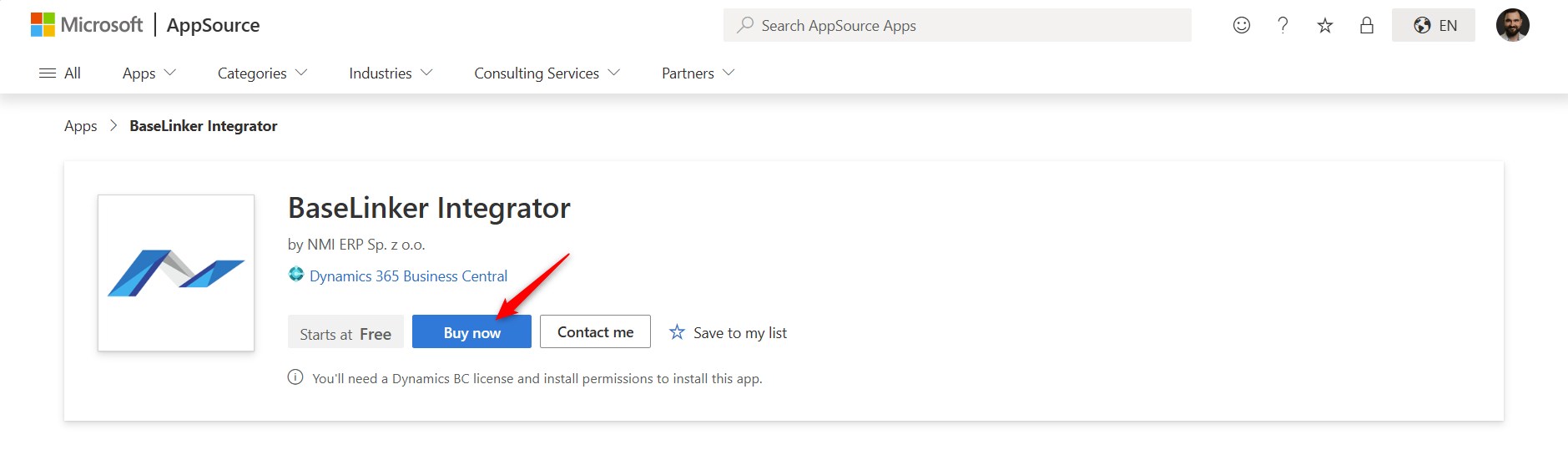
- Click the Buy now button to start the purchasing process.
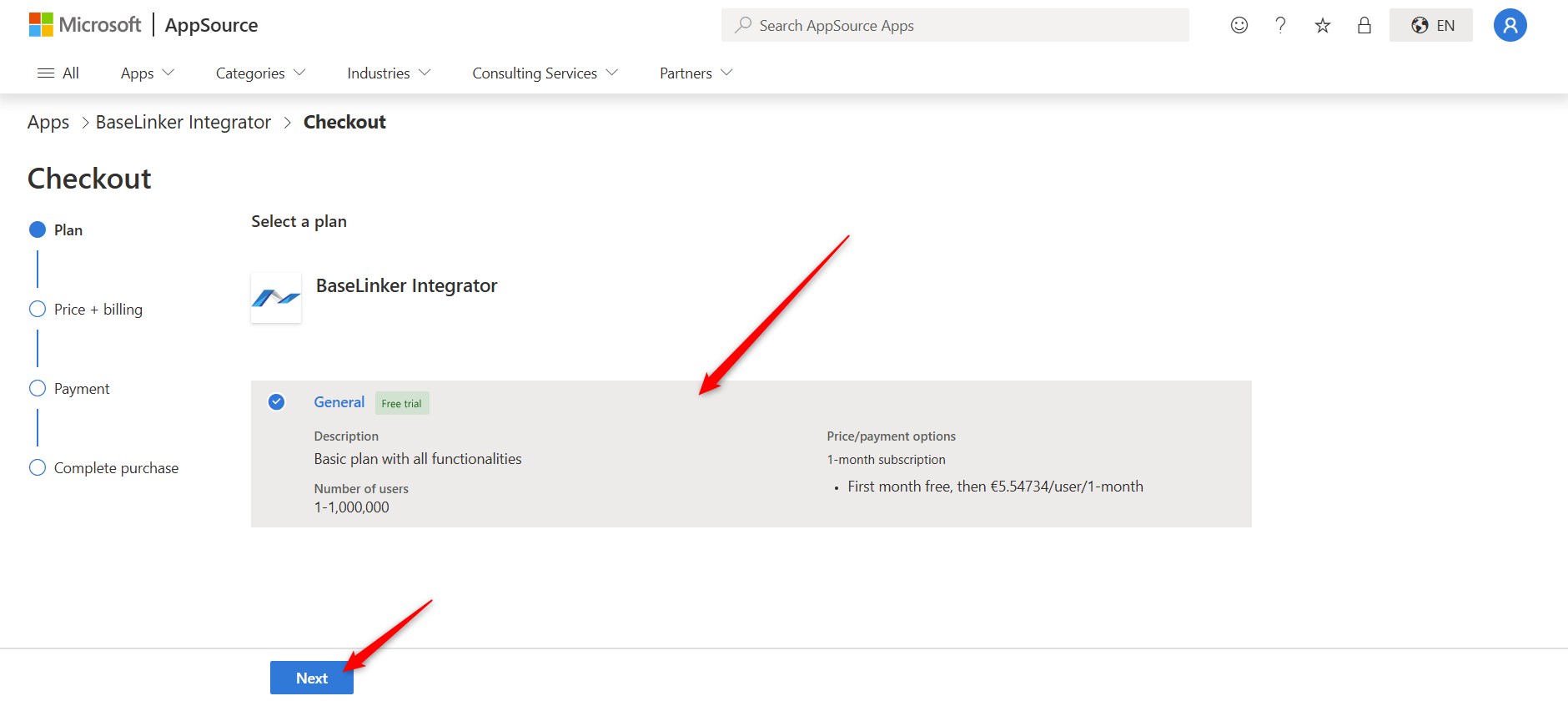
- Select the appropriate plan and click the Next button. Some available plans may differ in price and available functionalities.
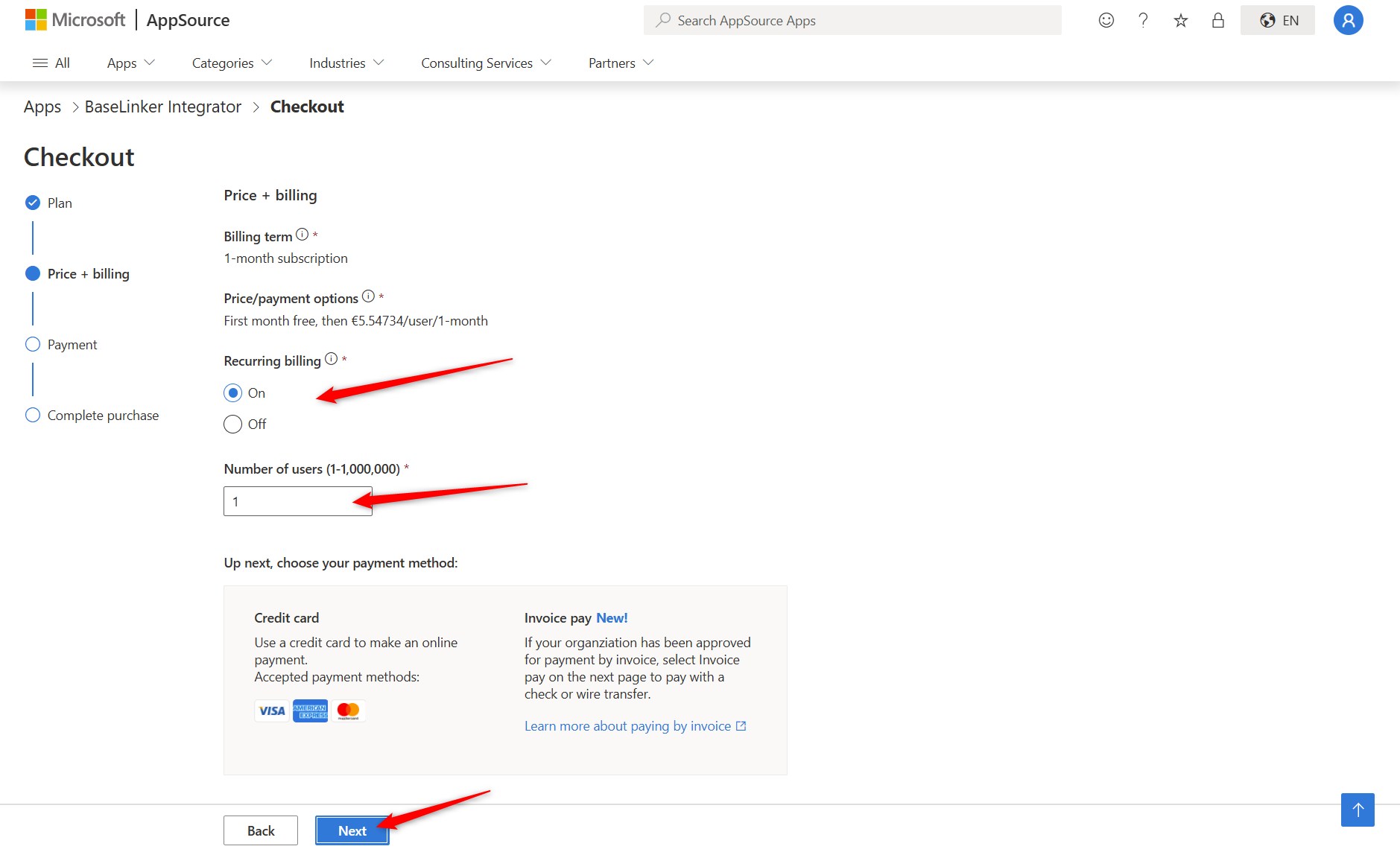
- In the Recurring billing section, choose whether the plan should renew automatically and enter the number of licenses to purchase. For recurring payments, the billing account will be automatically charged every month.
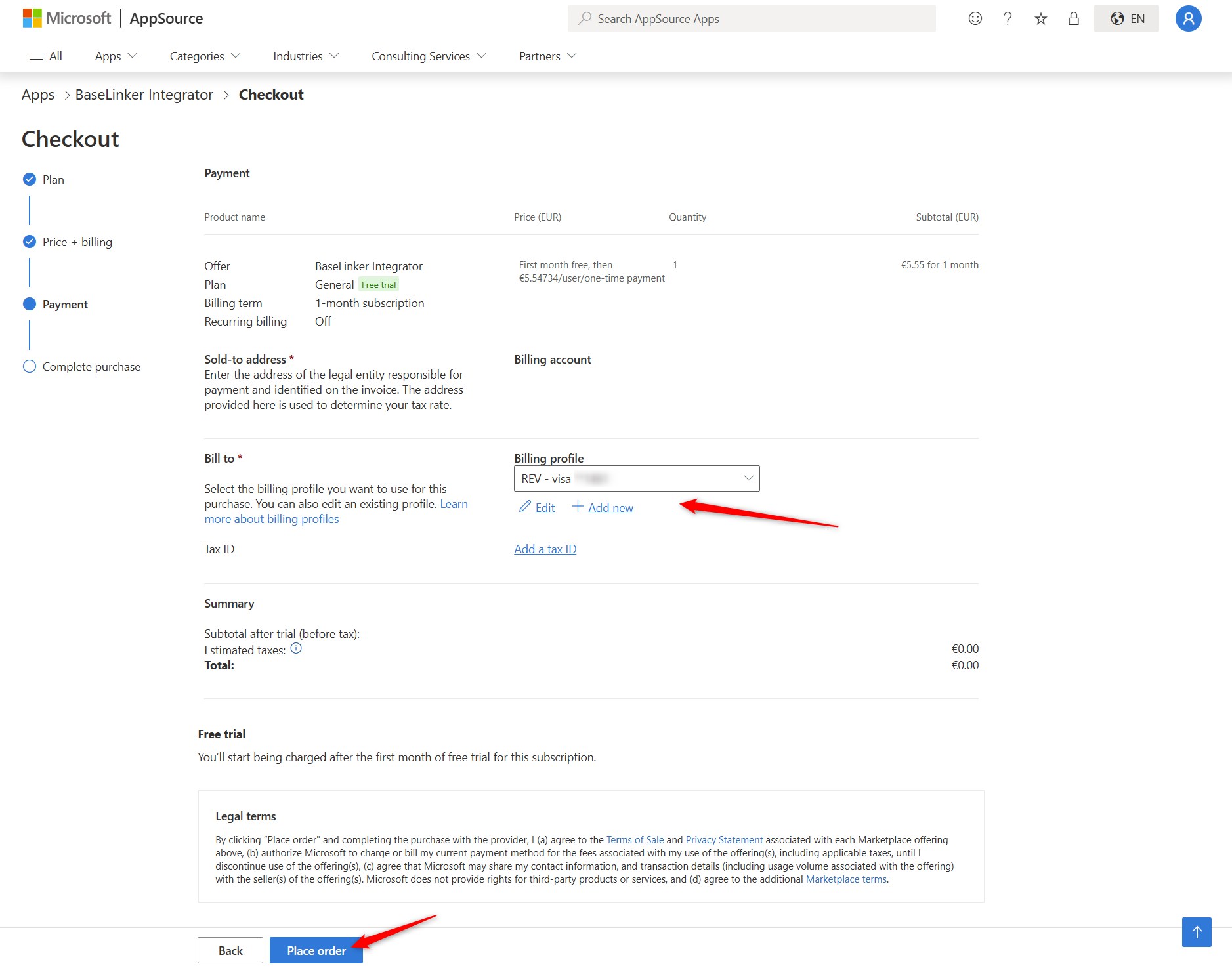
- Select the billing account from which the payment will be made. If the account has not been defined previously, you can do so by clicking the Add new button. Then click the Place order button to submit the order.
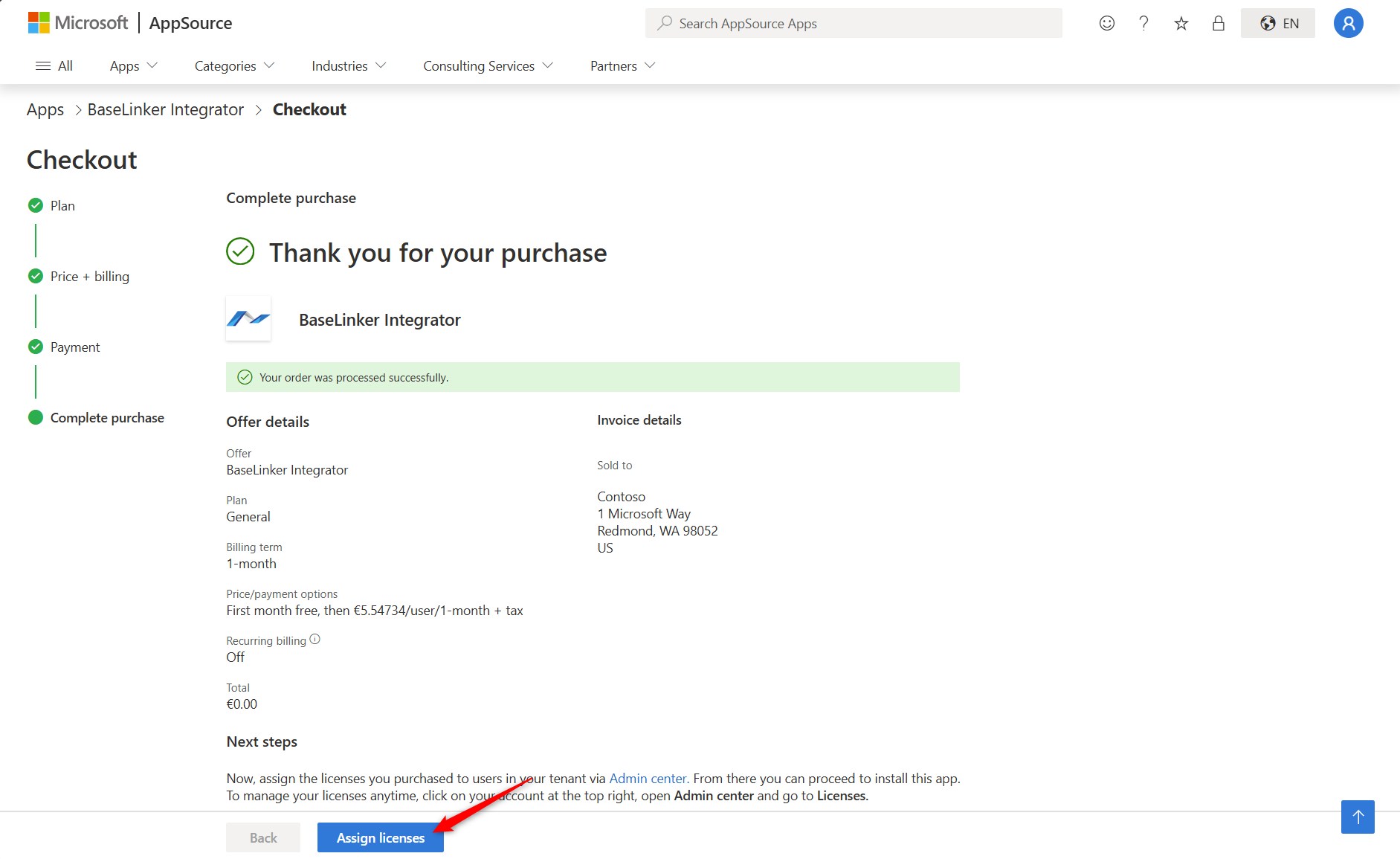
- After the payment is completed, a window will appear with a summary of the purchase. At this point, you can immediately proceed to the stage of assigning the purchased licenses to Business Central users.
Assignment of Licenses
Each purchased license must be assigned to a specific Business Central user. Once assigned, the system will automatically allocate the appropriate set of permissions. Only a person with administrator privileges can assign the license.
To assign licenses to users, you need to:
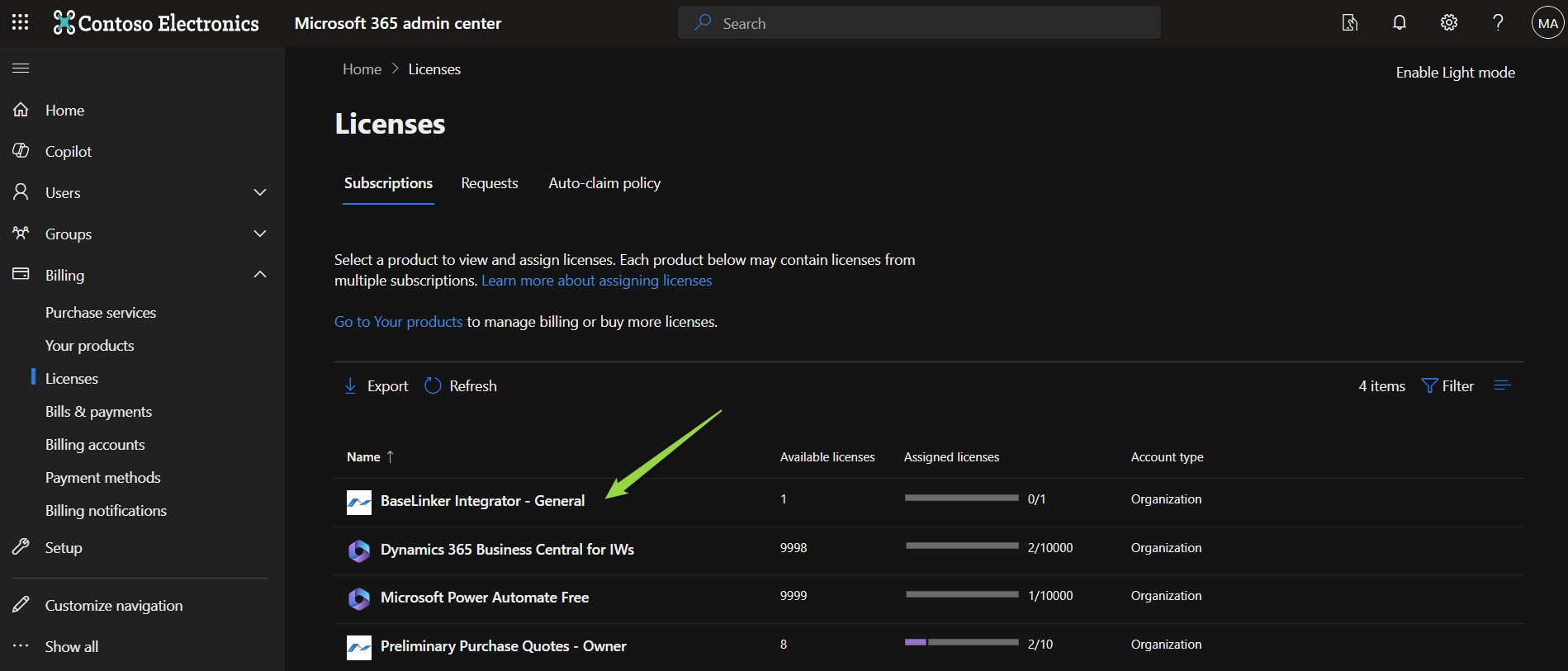
- Go to the admin.microsoft.com website and select the Billing -> Licenses section from the side menu.
- Select the license from the list that is to be assigned.
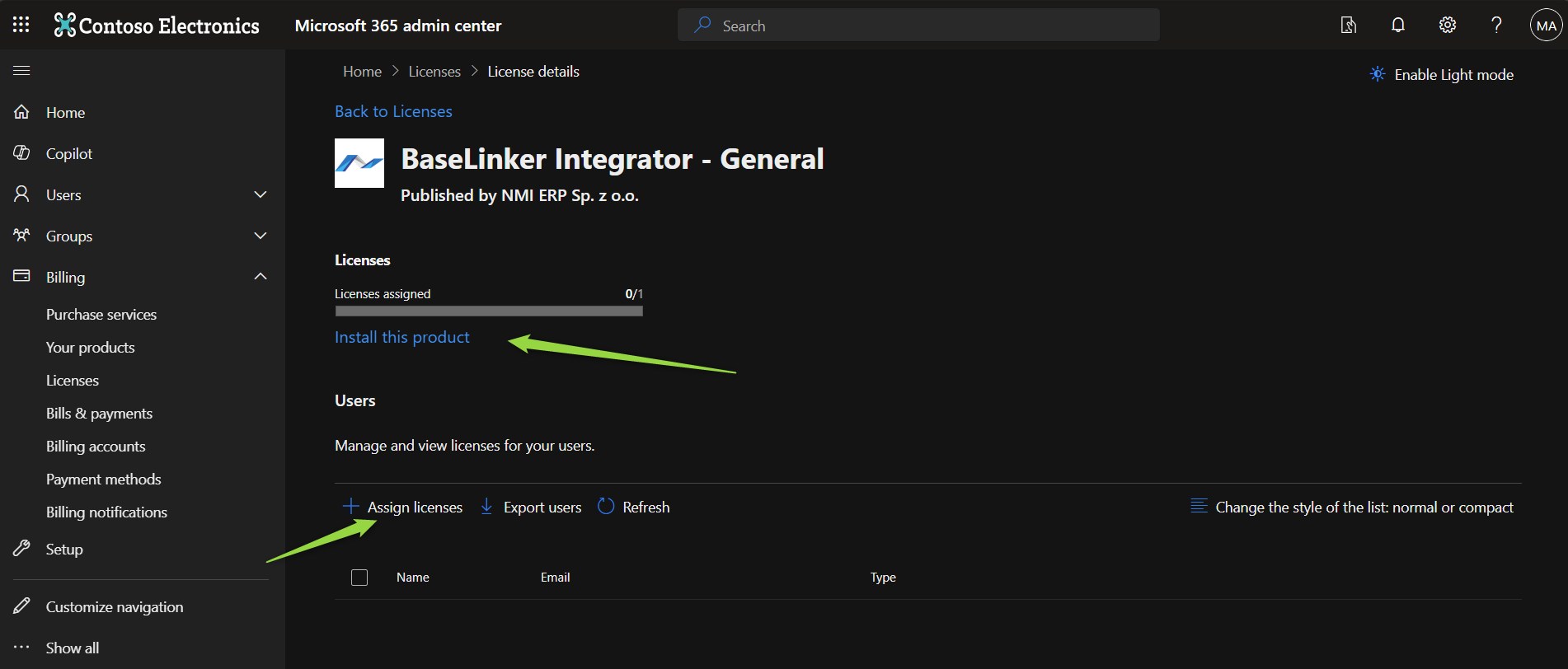
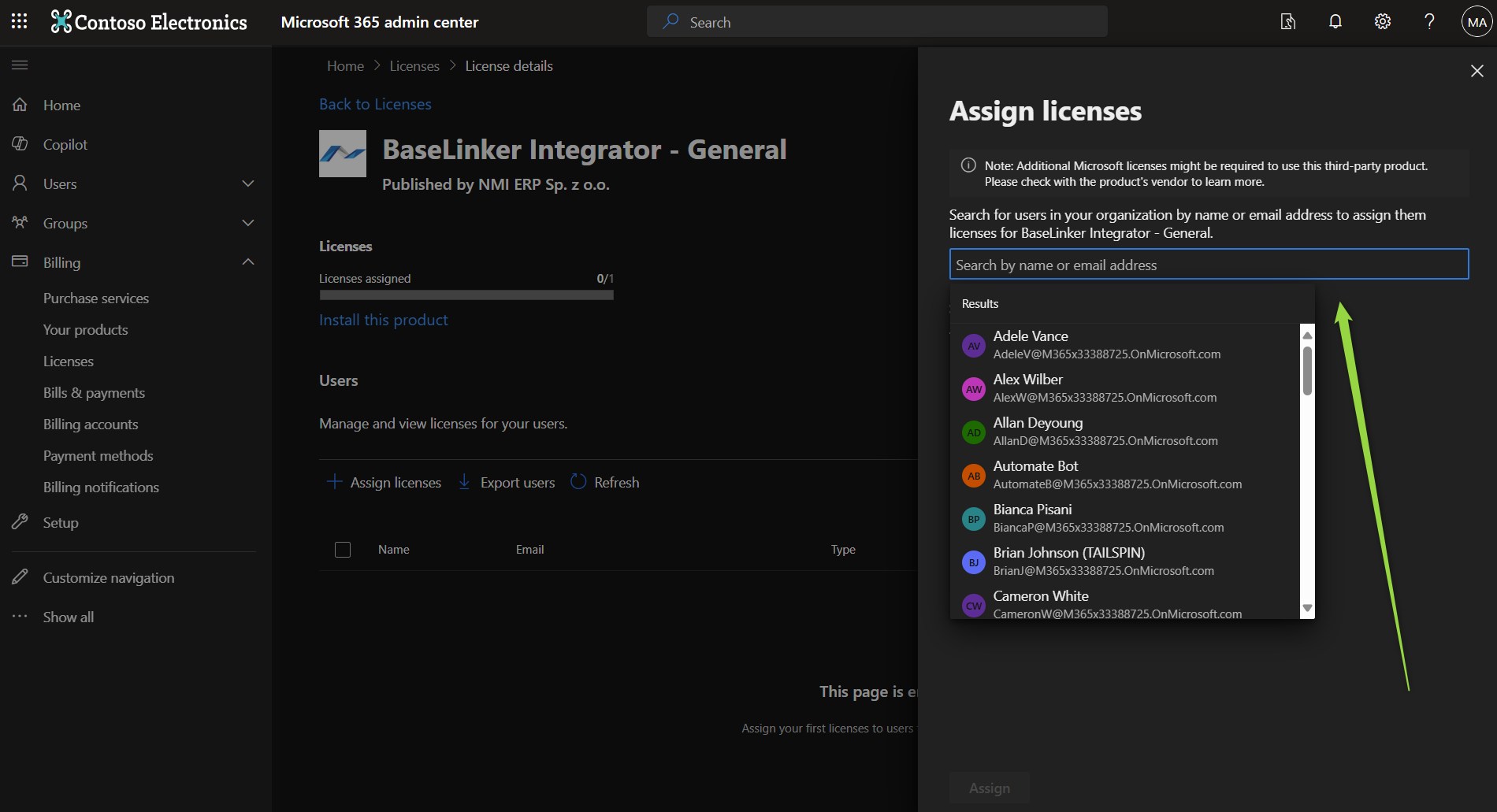
- Click the Assign licenses button to assign the licenses to users. From this location, you can also start the installation of the extension by clicking the Install this product button.
- Select from the list the individuals to whom the license is to be assigned. After completing the assignment of licenses, confirm the assignment by clicking the Assign button.
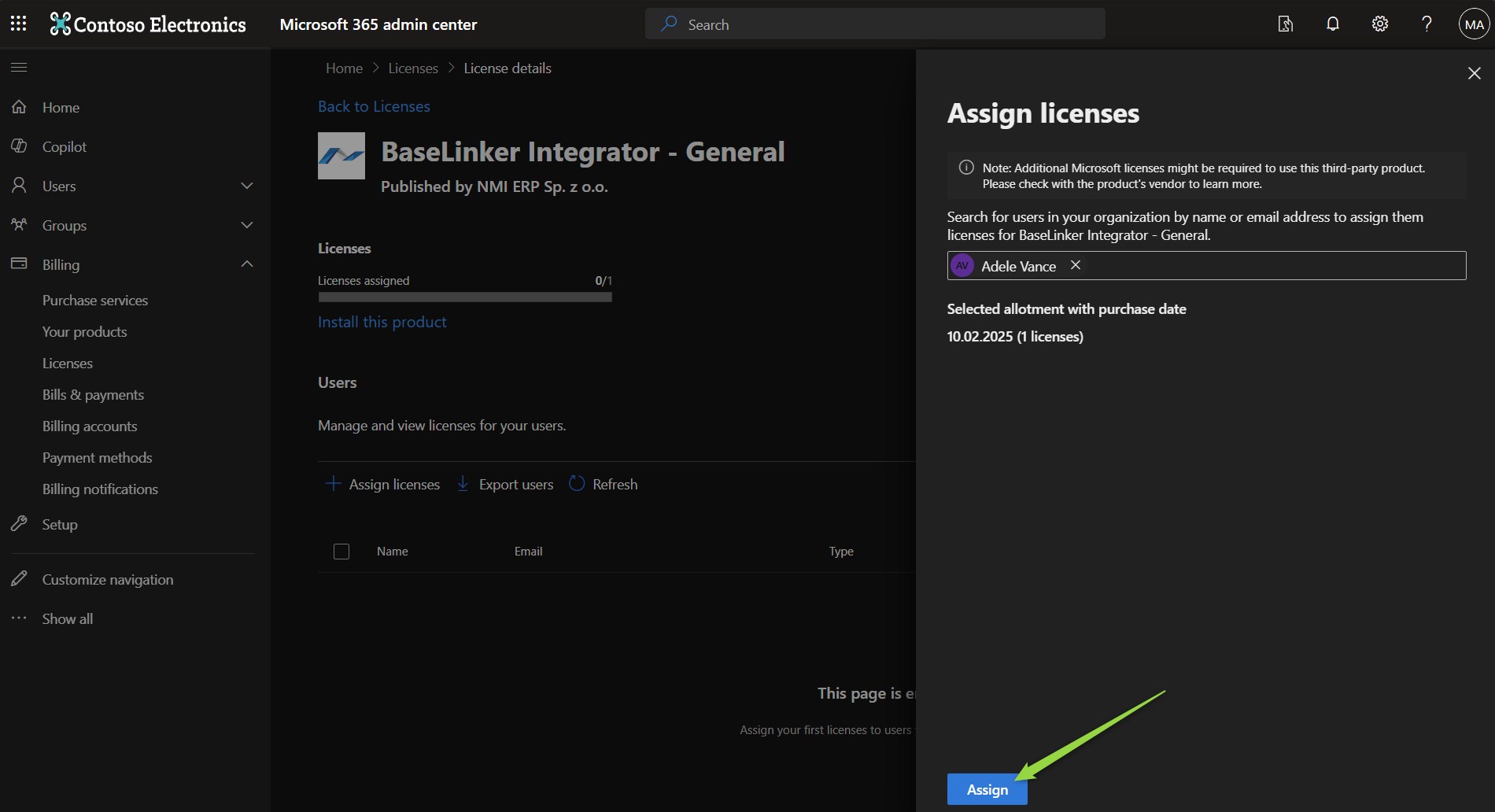
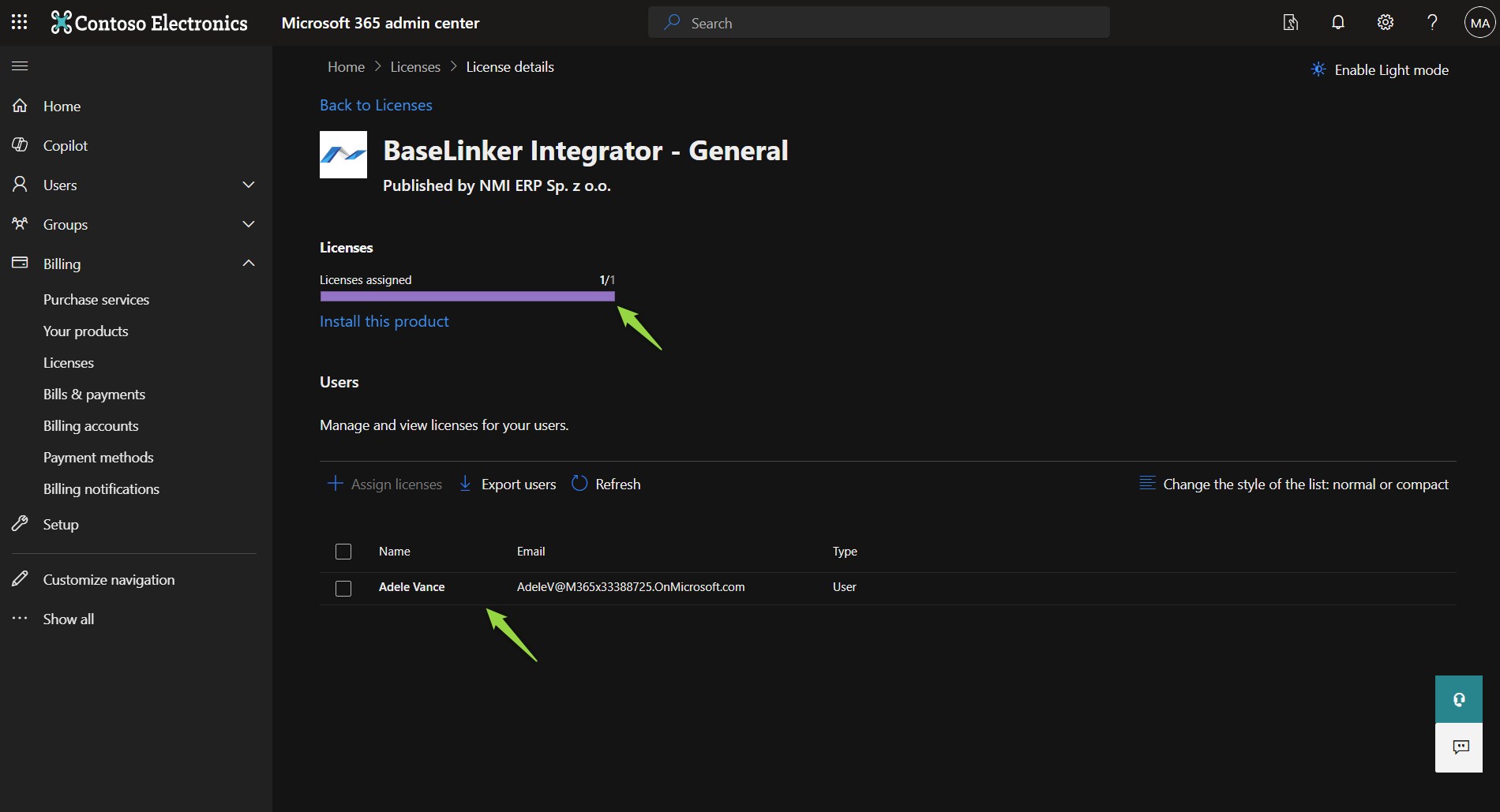
- After the process is completed, the status of the license and the list of individuals to whom the license has been assigned should appear in the list of available licenses.